SPARCORP VENTURES LTD.
A hand with picking.
Pick List is awaiting Lightspeed’s public App Market validation. You can try the free demo with sample orders. Installation in your own Ecwid store is not available yet.
Contact Chris
Email chris@tiny.com for help or feedback. Include what you were trying to do, what happened, your browser, and the approximate time. If there is an error message, copy its wording. Use a redacted screenshot if it helps.
Please leave out customer names, addresses, private order notes, payment details, passwords and access tokens. Support is by email in English. We aim to respond within 24 hours and will respond within 48 hours. Resolution time depends on the issue.
Your first picking run
A batch is a saved group of orders you pick together. Choose Create picking list to save one, then find it again in Batch history.
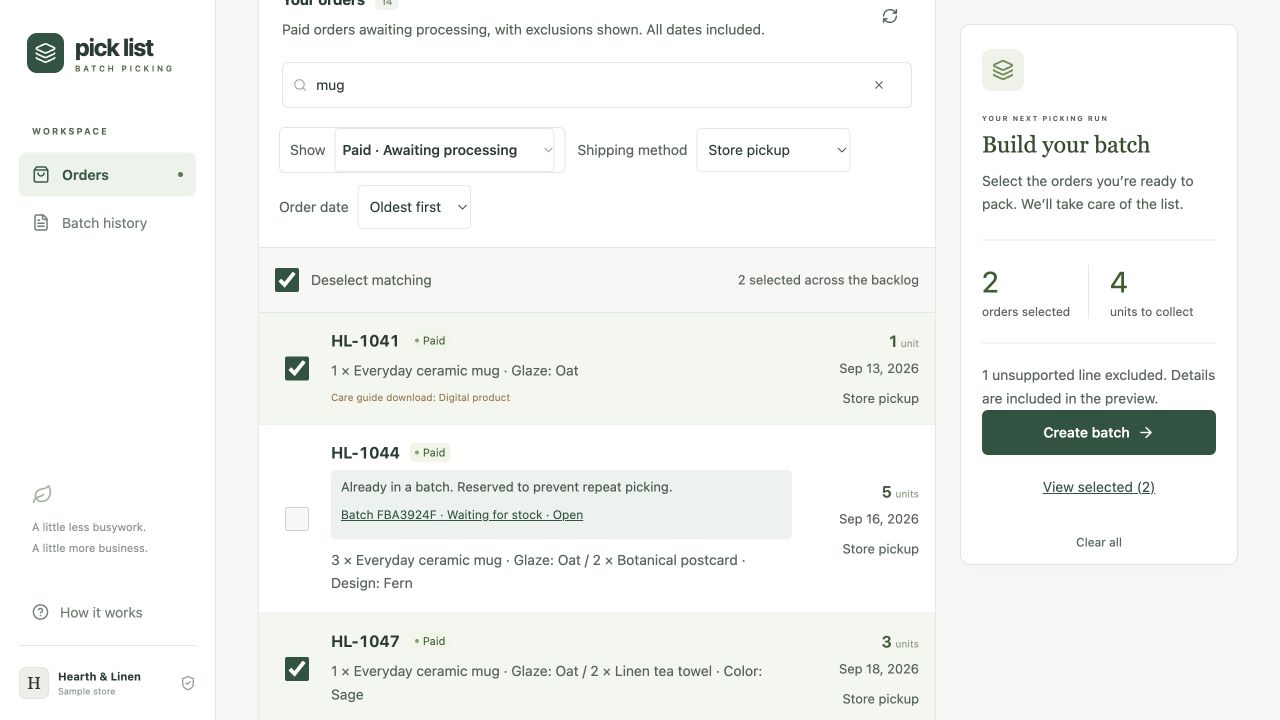
- Choose orders. Search all eligible orders, including older ones. Select matching orders across the full results, then use View selected to check or remove them. Selected orders stay selected when you change filters.
- Create and check the list. The Ready batch shows each item and the quantity needed by each order. Variants and personalizations stay separate. Printing does not start picking.
- Start picking and save counts. Type how many you found and press Enter or tap Save count. All found and Can’t find item save immediately. An unsaved label means the change is still a draft.
- Confirm completion. Find every required unit, then confirm that picking is complete. The list and counts remain visible. Pack the orders and update fulfillment in your store when ready; Pick List does not do that for you.
Find the right item and order
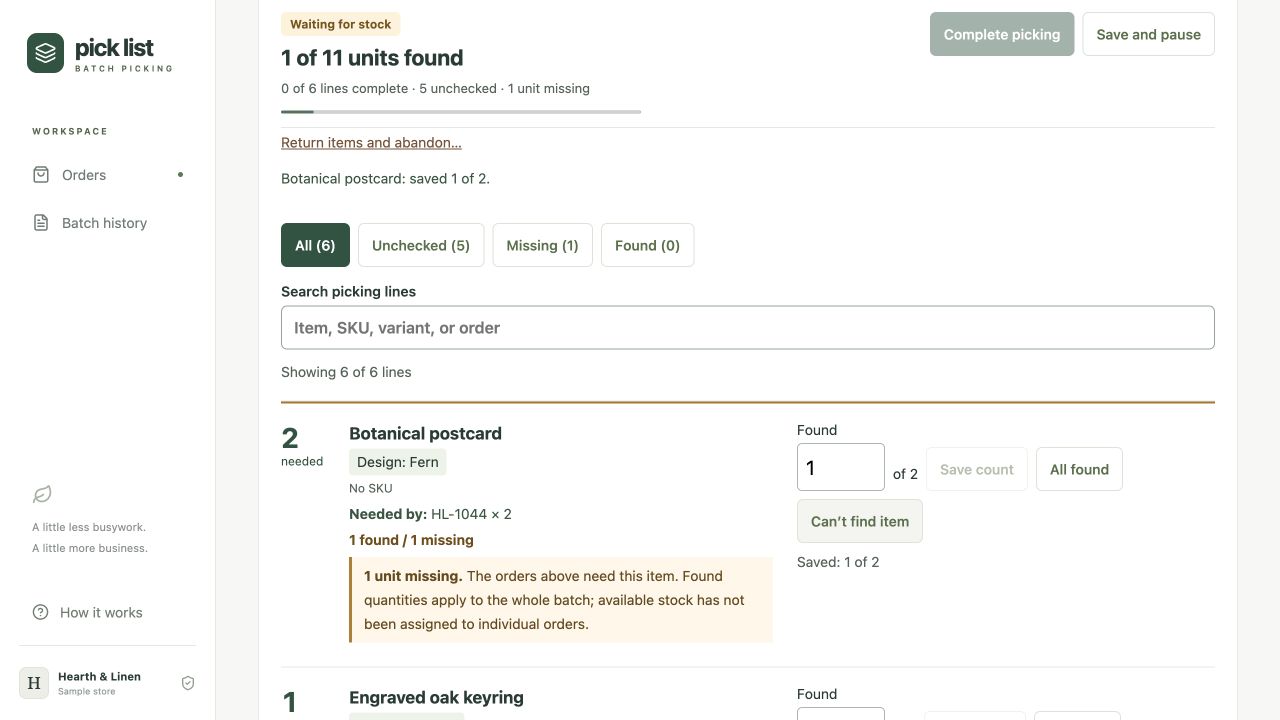
Each picking line shows its variants, personalization and order quantities. Customer instructions appear above the list. Search by product, SKU, variant or order reference. Use Unchecked for lines without a saved count, Missing for shortages or Found for complete lines.
Progress shows saved units found and fully checked lines. Unchecked quantities are not treated as confirmed missing stock. Edited lines stay visible until saved, even if they do not match your filters.
Pause when something is missing
Save the quantity you found, or use Can’t find item to save zero. The line shows how many units are missing and which orders need the product. Counts apply to the whole batch; the app does not assign limited stock to individual orders.
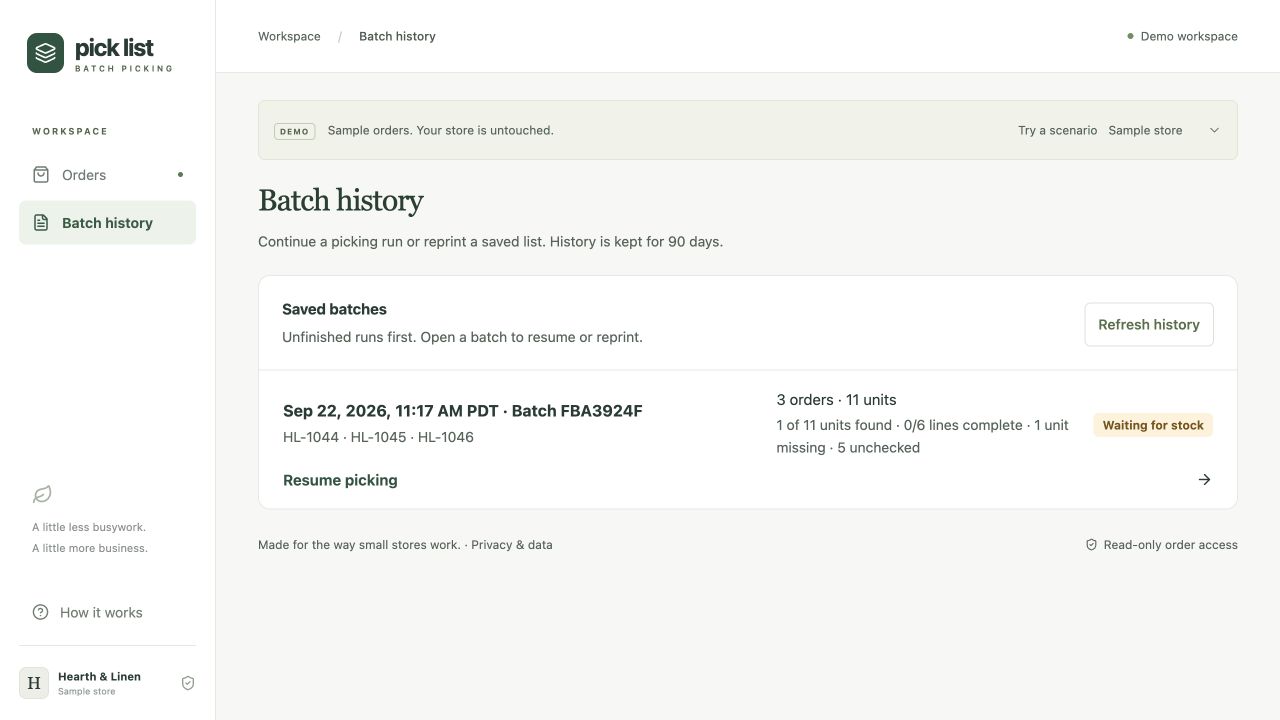
Choose Save and pause to return to history. Your counts and order reservations are kept. Open the batch to resume when stock is available. Completion stays unavailable until every line is fully found.
An order is already in a batch
Follow its batch link or open Batch history to continue or reprint. Ready, Picking, Waiting for stock and Completed batches all keep their orders reserved for 90 days from batch creation. Completing or reopening a batch does not release those orders or restart the 90-day period.
Correct a completed batch
Open it from Batch history and choose Reopen to correct counts. Confirm the prompt, check the products already collected and save the corrected quantities. Existing counts and reservations stay in place. This reopens the saved list; it does not import changes made to orders in your store.
If an order changed and you need a fresh list, return the collected products and abandon the old batch. For a completed batch, reopen it first. Abandonment releases its orders for selection again. Never use an abandoned list to pick or pack.
Print, save a PDF or export a CSV
Open Print preview and choose A4 or US Letter. Save any edited counts first, then use Print / Save PDF. Print at 100% scale with browser headers and footers turned off. On a narrow screen, scroll the preview sideways to see all columns.
The printout and CSV include the full batch, even when the picking view is filtered. CSV has one row for each product and order combination. Sum Order quantity for the number of units: consolidated quantities and found/missing totals repeat across allocation rows and must not be added together.
Printing or downloading does not change picking state, inventory or fulfillment. Keep exported order information somewhere appropriate for your business.
Demo history seems to be missing
The demo uses a private browser cookie to reopen your workspace. A different browser, private window, cleared cookie or different app address starts a separate workspace. Use app.picklistkit.com consistently. Demo batches expire 90 days after creation.
Billing and cancellation
The demo is free and does not start a subscription. The confirmed merchant launch plan is US$4.99 per store per month with a 14-day trial, billed through Ecwid. Initial markets are the United States, United Kingdom, Ireland, Australia and New Zealand. Review the terms shown by Ecwid before installing.
To cancel, open Ecwid admin and choose Apps → My Apps → Pick List → Uninstall, then confirm. Uninstalling cancels the subscription and removes access. Export needed records first; the verified uninstall notification deletes saved Pick List data. Closing the app or abandoning a batch does not cancel billing.
For billing help or a refund request, email chris@tiny.com with your store ID and receipt reference, without card details. We will investigate and coordinate with Ecwid. Read the merchant terms for the connected app.
Privacy or security concerns
Email chris@tiny.com. State whether you need access, correction or deletion, or are reporting a security issue. Do not send passwords or sensitive proof of identity in the first message. See our privacy notice.